Open Pixlr Express and upload the photo you want to edit.
Achieve The Perfect Photo Color Correction
Pixlr color corrects your photos effortlessly using intuitive tools like Auto Fix and Auto Pop, which balances lighting and tones automatically, and adjustable sliders for vibrance, saturation, and temperature, ensuring your images look natural, vibrant, and professionally polished.
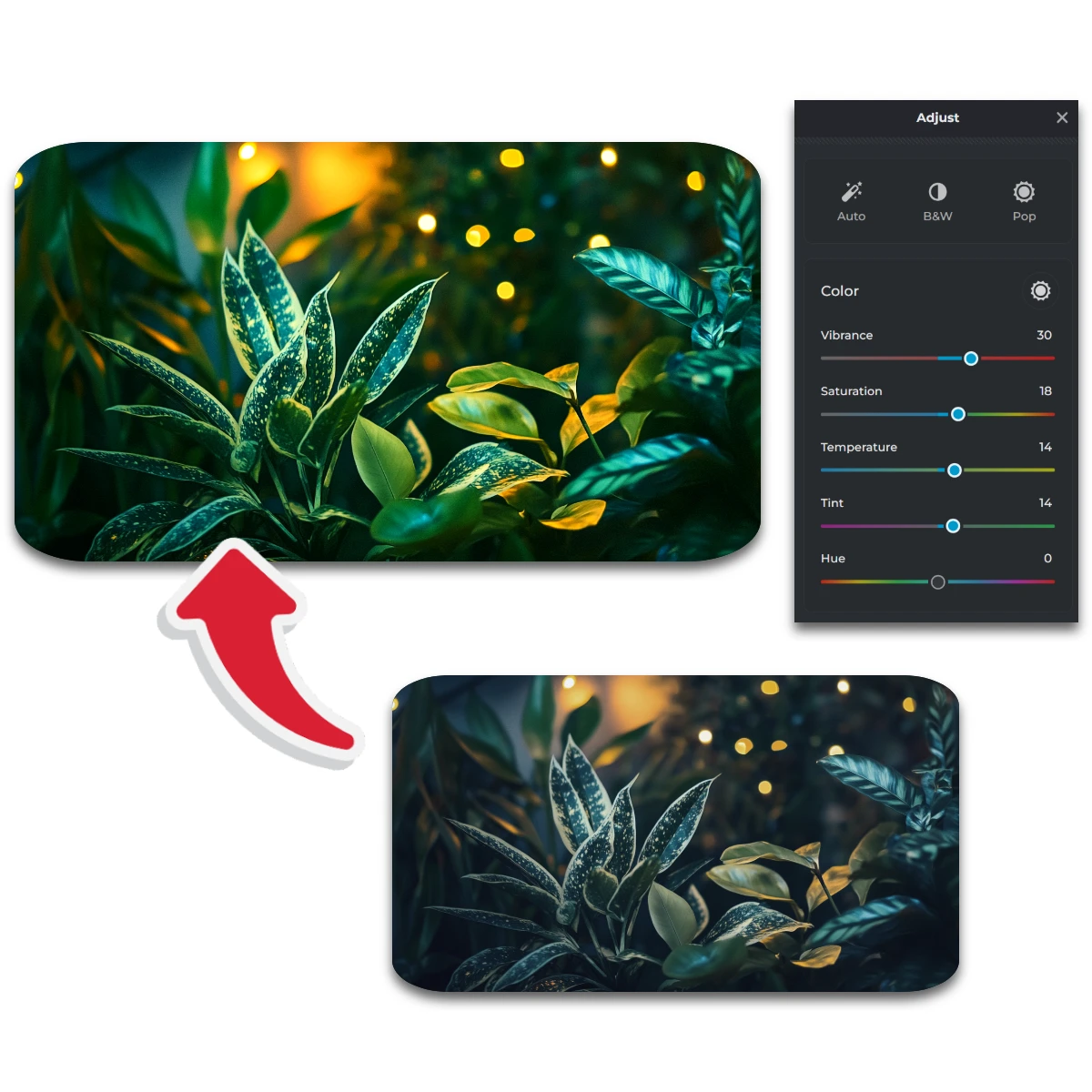
What Is Color Correction?
Color correction is the process of adjusting and enhancing the colors in a photo to make it look more natural, balanced, and visually appealing. If a photo looks too dark, too bright, or has an unnatural color tint (like a yellow or blue hue), color correction helps fix these problems.
How To Color Correct A Photo Online
1
2
Open the Color Correction feature by clicking on “Adjust” from the left-menu.
3
Click on the Auto Fix button to automatically balance the colors and lighting or Auto Pop to increase the vibrancy in your photo.
4
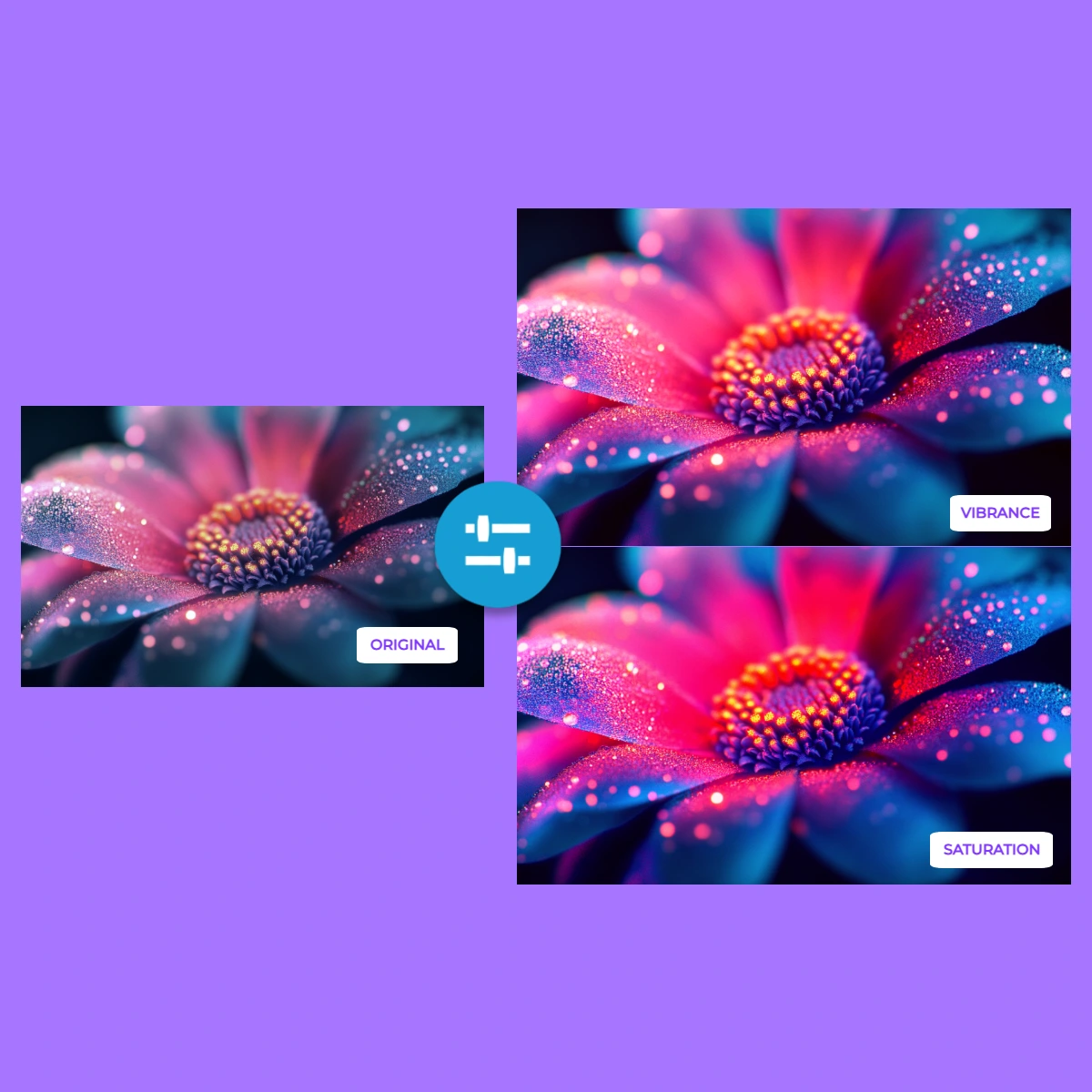
Fine-tune the colors by increasing Vibrance for subtle improvements or Saturation for bolder, more intense colors.
5
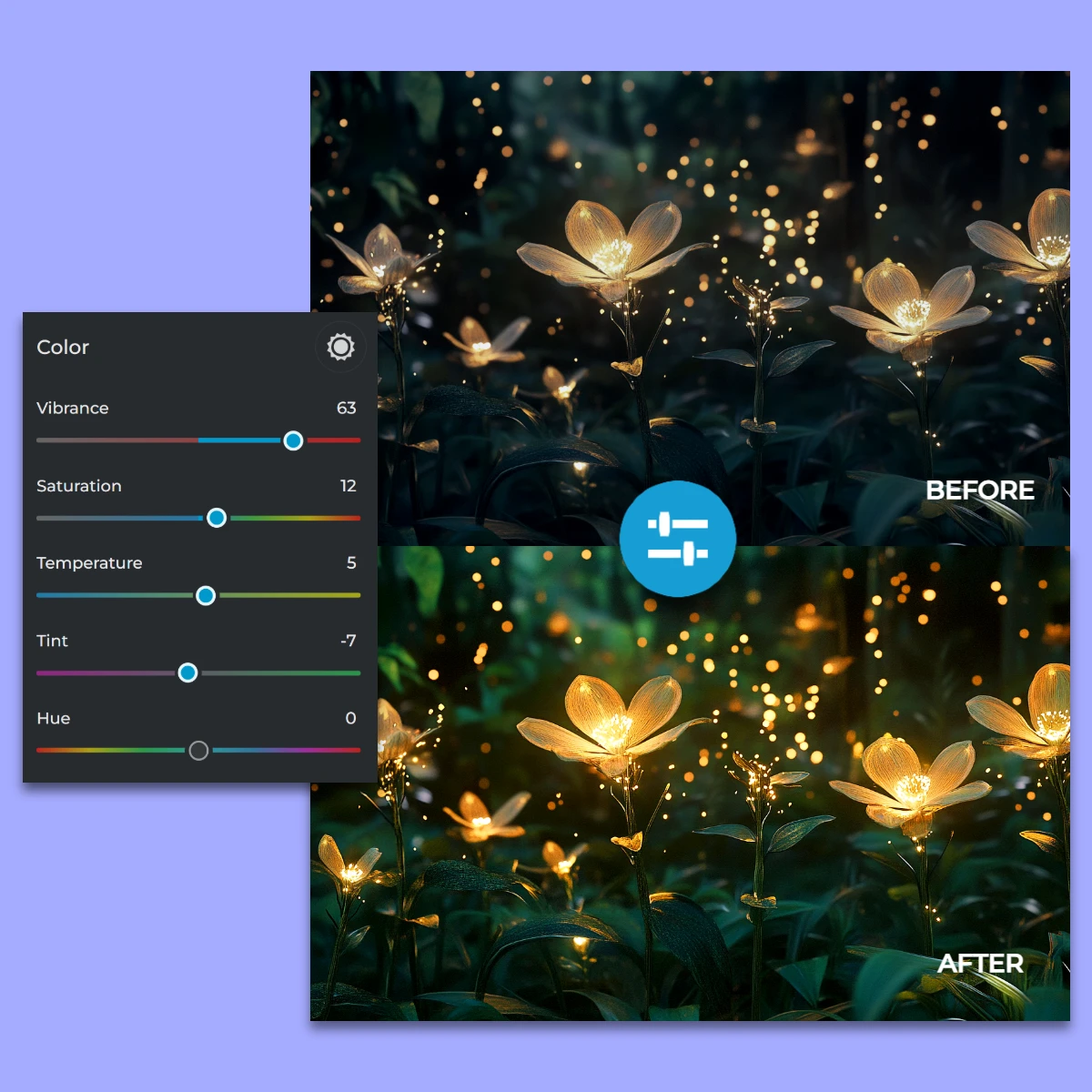
Warm up your photo with the Temperature slider or balance color tones using Tint.
6
Adjust the Brightness and Contrast sliders to ensure the photo looks well-lit and dynamic.
7
Once satisfied, save your color-corrected photo in your preferred format (JPG, PNG, WebP, or PDF).
Correct The Color Of Your Photos
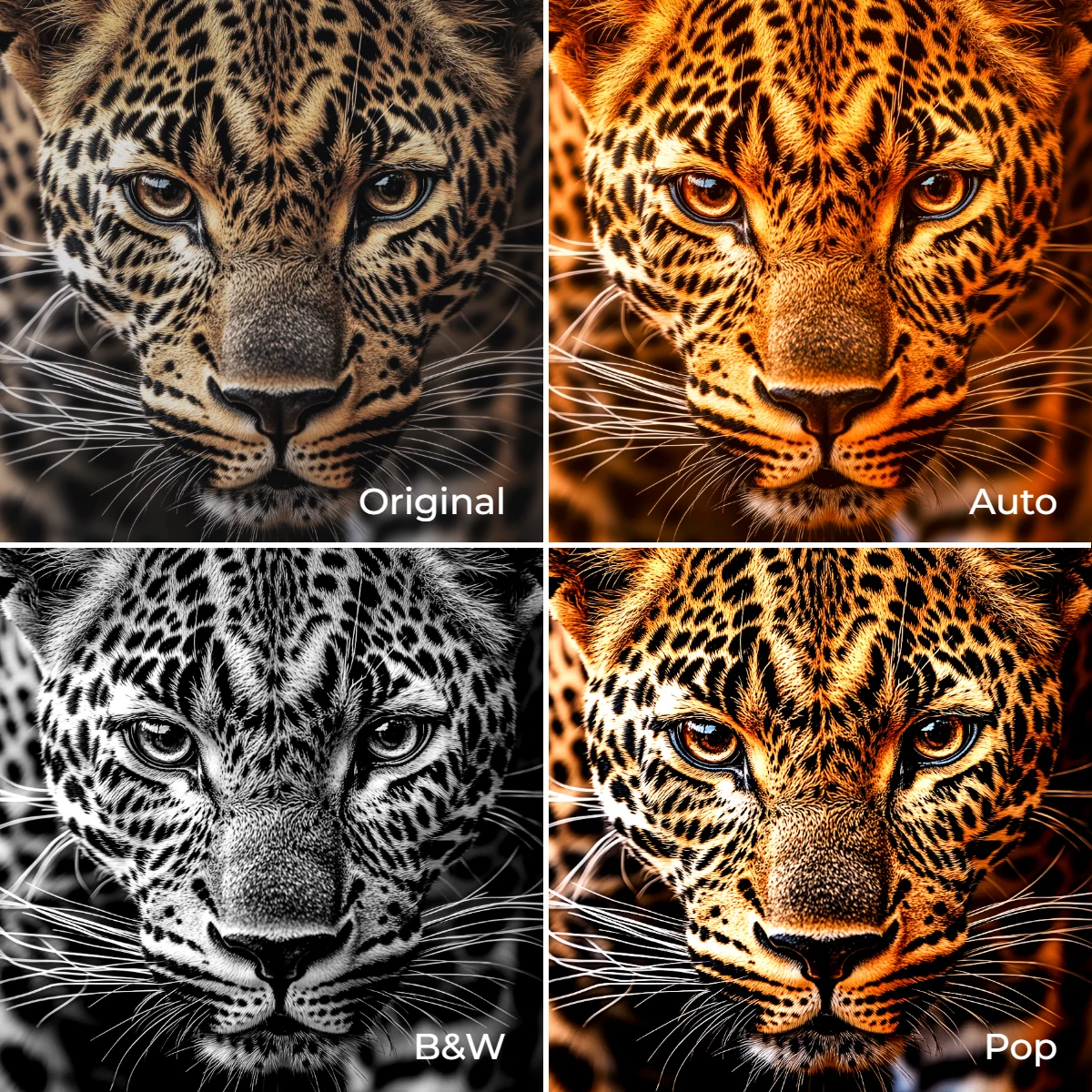
With Pixlr, you can auto color set your photo online with just a click. The Auto Fix button instantly balances lighting and color, giving your images a natural, polished look. The B&W tool converts your image to a timeless black-and-white palette with one click, perfect for creating dramatic or classic visuals. Meanwhile, the Auto Pop option boosts vibrance, making dull colors stand out and your images look lively.
Adjust Colors With Precision
Achieve precise photo color correction with Pixlr’s Vibrance and Saturation sliders. Use Vibrance to subtly enhance muted tones without oversaturating vivid areas. For bold, impactful images, the Saturation slider adjusts the intensity of all colors, giving your photo a dramatic or artistic edge.
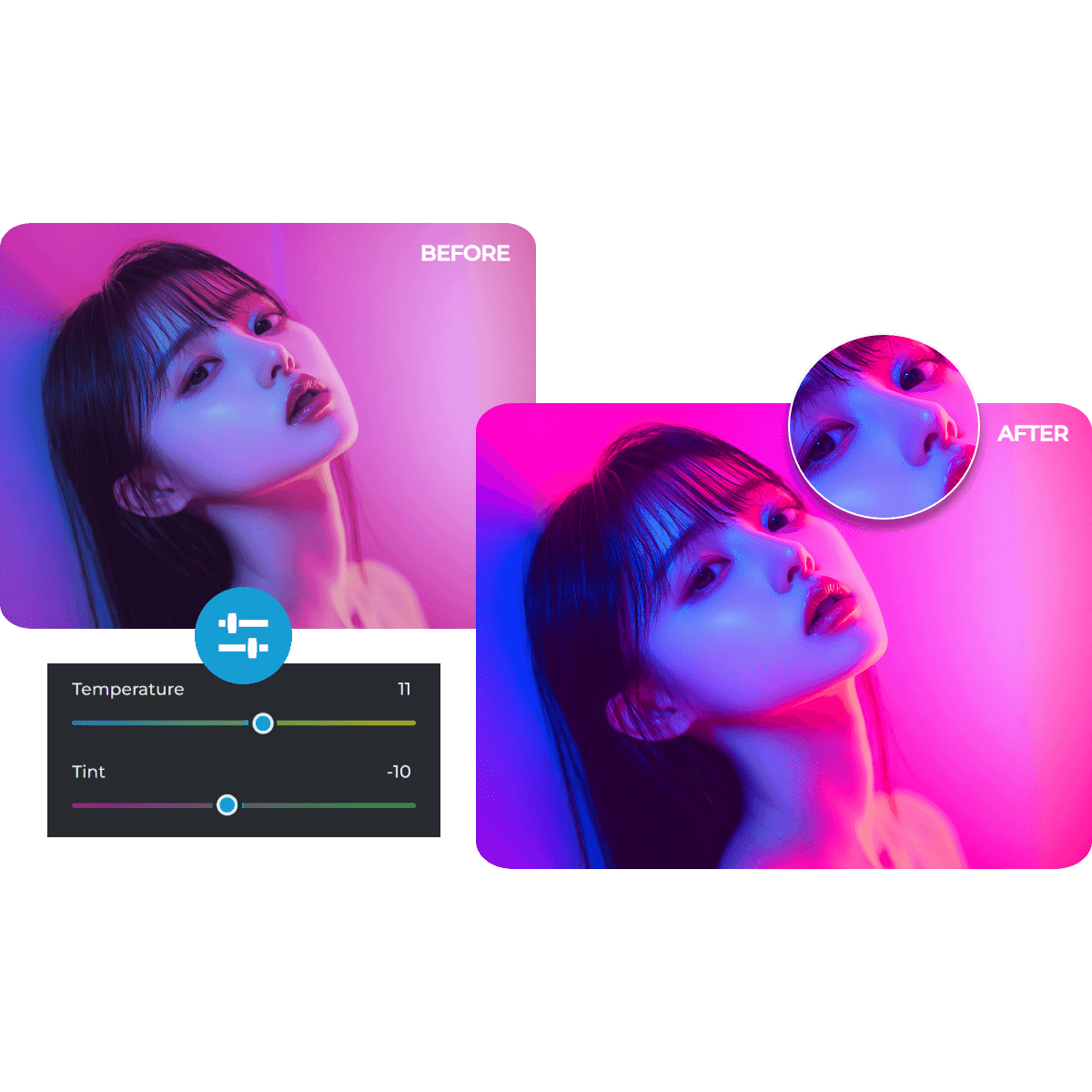
Create Perfect Temperature And Tint
Pixlr lets you easily adjust the temperature and tint of your photos for the perfect mood. Adjusting the Temperature slider warms up or cools down your image tones, ideal for creating cozy golden hues or crisp, cool vibes. The Tint slider adds creative flair by infusing your image with subtle green or magenta tones, balancing your colors.
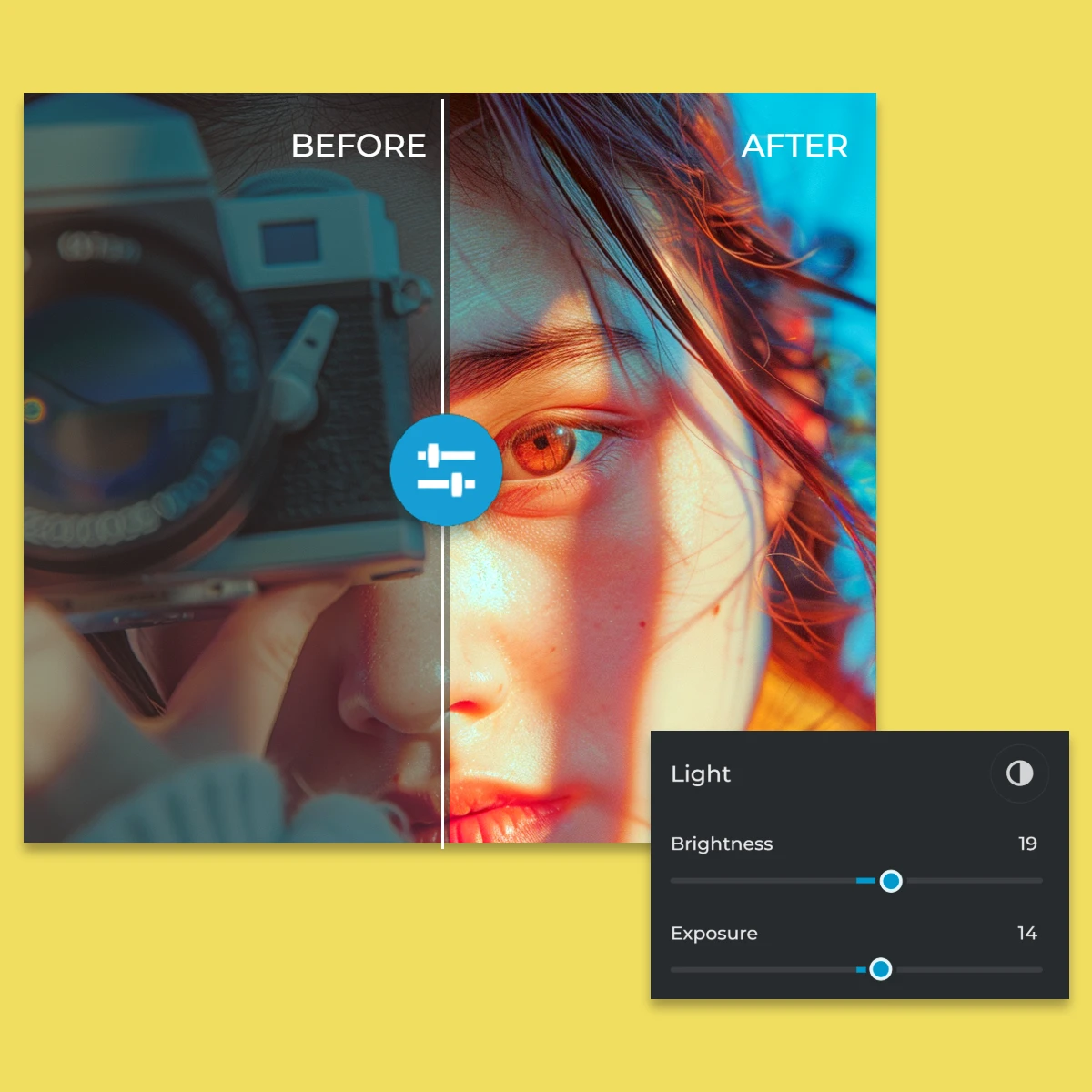
Refine Brightness And Exposure
Make your photos shine with Pixlr’s Brightness and Exposure sliders. The brightness slider adjusts the overall light level of your image, while Exposure fine-tunes the light intensity for sharper detail. These tools help you fix underexposed or overexposed photos, ensuring your images look clean and well-lit.
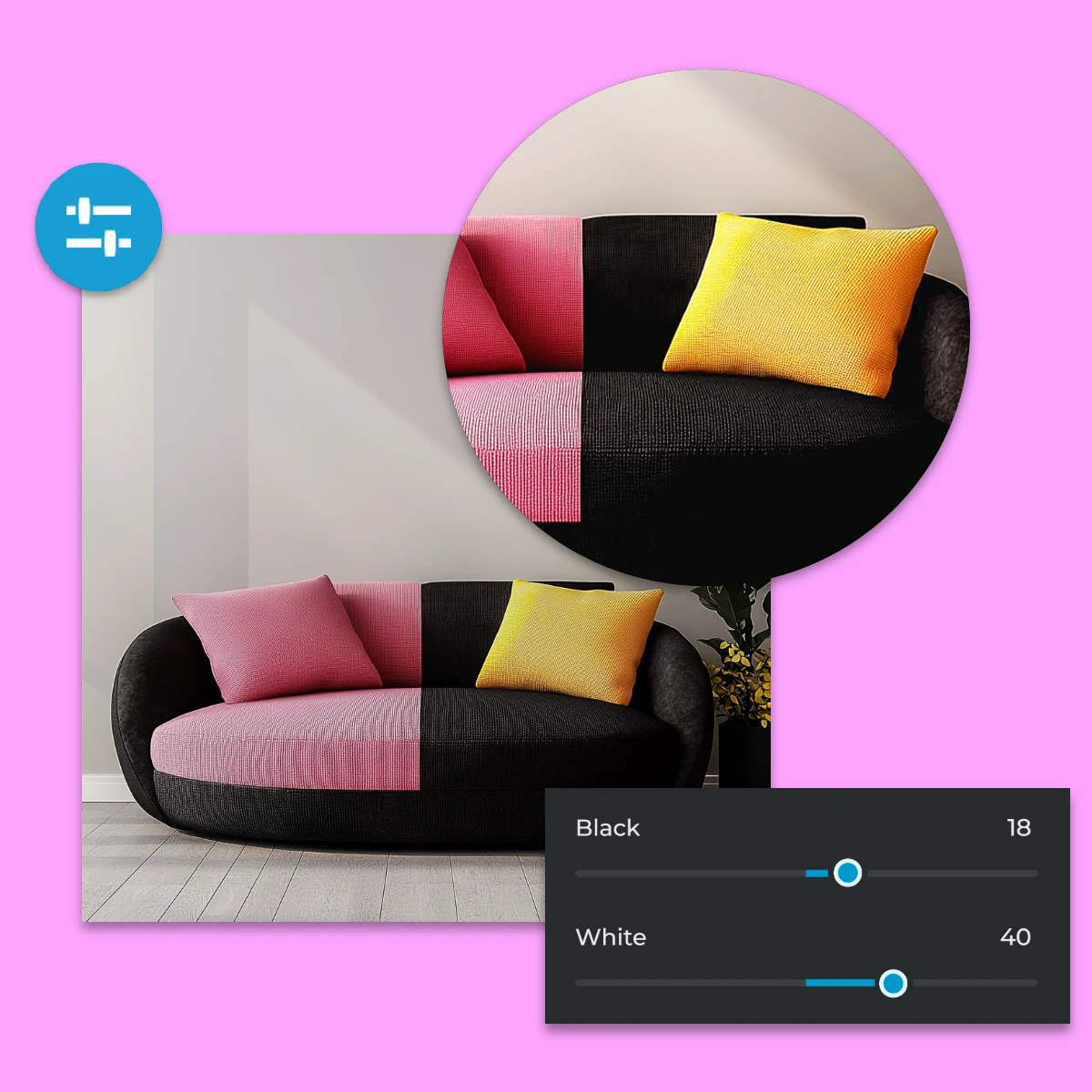
Enhance Contrast And Tonal Range
Pixlr’s Contrast, Black, and White sliders give you full control over your photo’s tonal range. Boost Contrast to add depth and drama, making your subject stand out. Adjust the Black slider to deepen shadows or the White slider to brighten highlights, achieving a balanced, eye-catching look.
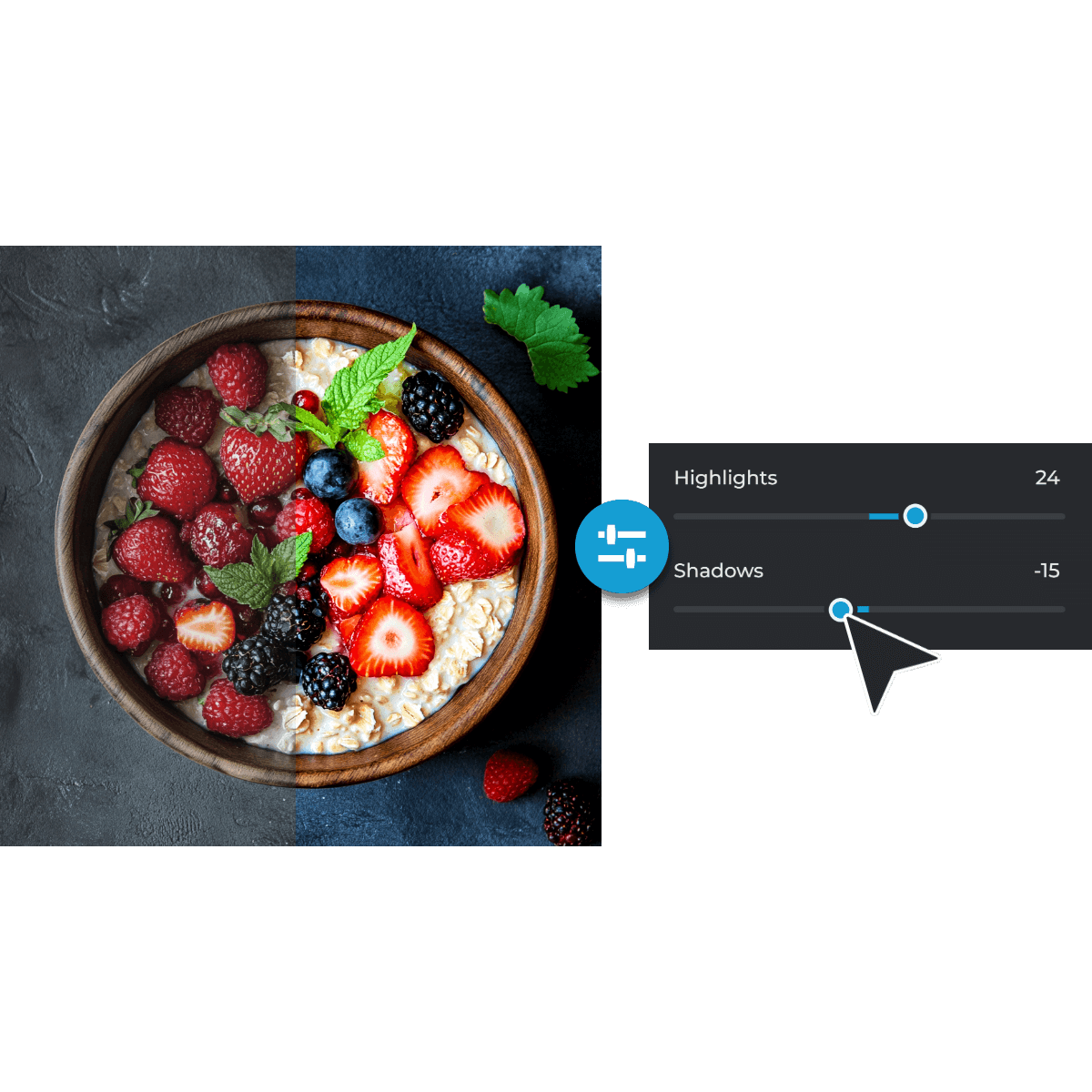
Recover Details In Highlights and Shadows
Bring hidden details to life with the Highlights and Shadows sliders. Use Highlights to soften bright areas, recovering lost details in overexposed sections. The Shadows slider brightens dark areas, uncovering details that might otherwise go unnoticed. These adjustments add depth and dimension to your images.
Do More with Pixlr AI Tools
Frequently Asked Questions
Does Pixlr offer automatic color correction?
Yes, Pixlr provides an Auto Fix feature that automatically balances lighting and colors in your photo with a single click.
Can I adjust individual color elements in Pixlr?
Absolutely. Pixlr allows you to fine-tune individual color elements using sliders for vibrance, saturation, temperature, and tint, giving you precise control over your image's color balance.
Is Pixlr suitable for beginners in photo editing?
Yes, Pixlr's user-friendly interface and simple adjustment sliders make it accessible for beginners, while offering advanced features for more experienced users.
Can I undo changes if I'm not satisfied with the color correction?
Yes, Pixlr includes undo and redo options at the bottom, allowing you to revert to previous states of your image if you're not satisfied with the adjustments.
Does Pixlr support RAW image files for color correction?
Pixlr primarily supports standard image formats like JPG, PNG, and WebP. For RAW files, it's recommended to convert them to a compatible format before editing in Pixlr.
Is Pixlr's color correction feature free to use?
Yes, Pixlr's color correction tools are available for free.
Does Pixlr offer tutorials on color correction?
Yes, Pixlr provides tutorials on their official Youtube Channel to help users understand and effectively use their color correction tools.
How do I fix a color cast in my photo with Pixlr?
To correct a color cast, use the Temperature and Tint sliders in Pixlr to balance the colors, neutralizing unwanted hues and restoring natural tones.